Showing posts with label System. Show all posts

How to reinstall factory operating system on different laptops

In this post I explain how to reinstall factory operating system on different laptops. This should work for most laptops running Windows Vista or Windows 7 operating systems.

This could be useful if your operating system stopped working properly, got corrupted or infected with a virus.

WARNING! Running system restore utility will erase all personal data on the hard drive and re-image it back to factory defaults. Make sure all personal data is backed up before reinstalling the operating system. Also, make sure the laptop is running on AC adapter power during the recovery process.

These days most laptops are sold without recovery discs. Instead they have a hidden (or visible) recovery partition with the factory image. In order to re-image the hard drive back to factory defaults it’s necessary to initiate the recovery wizard and it’s very similar for many different laptop brands.

As an example I’ll show step-by-step operating system re-installation process on HP laptops.

Again, it will be the same or very similar for other laptop brands.

How to start Recovery Manager on HP laptops.

STEP 1.
Turn on the laptop and press the F8 key when HP (or any other brand) logo appears on the screen.

STEP 2.
On the next screen you should see Advanced Boot Options.

If for some reason you don’t get this screen, restart the laptop and press on the F8 key again.

From all available options select the very first line: Repair Your Computer and press on the Enter key.


STEP 3.
This should take you to the System Recovery Options.

Select available language and keyboard layout. Press on the next button.


STEP 4.
On the next screen select your user name (must be user with administrative rights) from the drop down menu.

Enter the user password and press the OK button.


STEP 5.
This will take you to the next System Recovery Options window.

The last option will be HP Recovery Manager. Click on it.


STEP 6.
This will take you to the next window: HP Recovery Manager.

There are many different options here and one of them – System Recovery (Restore your computer to its original factory conditions).

Select this option and follow the instructions on the screen.


How to start Recovery Wizard on Toshiba laptops.

In order to start Toshiba Recovery Wizard you follow STEPS 1-5.

This will bring you to the same System Recovery Options with Toshiba Recovery Wizard at the end.

Click on the Toshiba Recovery Wizard button.


On the next scree you’ll see Toshiba warning about data deletion. Click the next button.


In the next Toshiba Recovery Wizard window you can select Recover to out-of-box state option.

Click on the next button and follow instructions.


How to start Backup and Recovery Manager on Dell laptops.

Here’s another example. Now it’s for Dell laptops.

Again, follow steps 1-5 and on the System Recovery Options select the very last option: Dell Backup and Recovery Managers.


This will take you to the next window where you can start the operating system re-installation process. Follow the instructions.

If you find this article useful, please consider making a donation to the author. Thank you!

Boot From a USB Drive Even if your BIOS Won’t Let You

You’ve always got a trusty bootable USB flash drive with you to solve computer problems, but what if a PC’s BIOS won’t let you boot from USB? We’ll show you how to make a CD or floppy disk that will let you boot from your USB drive.


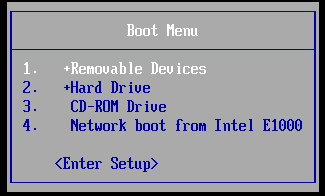
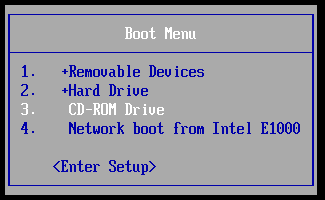
This boot menu, like many created before USB drives became cheap and commonplace, does not include an option to boot from a USB drive.

A piece of freeware called PLoP Boot Manager solves this problem, offering an image that can burned to a CD or put on a floppy disk, and enables you to boot to a variety of devices, including USB drives.

Put PLoP on a CD
PLoP comes as a zip file, which includes a variety of files. To put PLoP on a CD, you will need either plpbt.iso or plpbtnoemul.iso from that zip file. Either disc image should work on most computers, though if in doubt plpbtnoemul.iso should work “everywhere,” according to the readme included with PLoP Boot Manager.

Burn plpbtnoemul.iso or plpbt.iso to a CD and then skip to the “booting PLoP Boot Manager” section.

Put PLoP on a Floppy Disk

If your computer is old enough to still have a floppy drive, then you will need to put the contents of the plpbt.img image file found in PLoP’s zip file on a floppy disk.

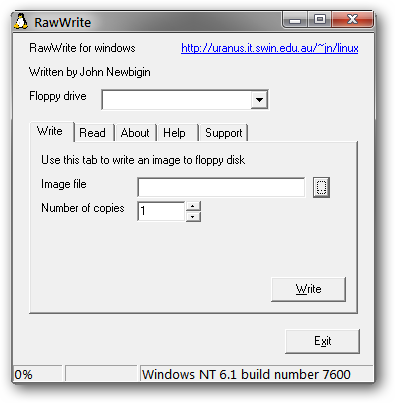
To do this, we’ll use a freeware utility called RawWrite for Windows.


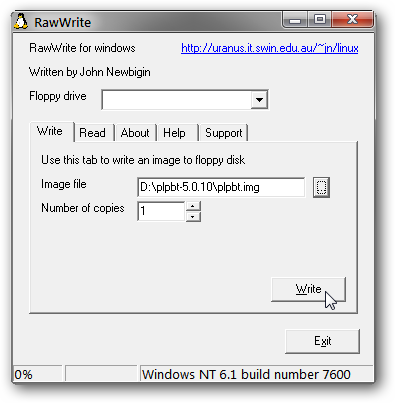
We aren’t fortunate enough to have a floppy drive installed, but if you do it should be listed in the Floppy drive drop-down box. Select your floppy drive, then click on the “…” button and browse to plpbt.img. Press the Write button to write PLoP boot manager to your floppy disk.


Booting PLoP Boot Manager

To boot PLoP, you will need to have your CD or floppy drive boot with higher precedence than your hard drive. In many cases, especially with floppy disks, this is done by default.

If the CD or floppy drive is not set to boot first, then you will need to access your BIOS’s boot menu, or the setup menu. The exact steps to do this vary depending on your BIOS – to get a detailed description of the process, search for your motherboard’s manual (or your laptop’s manual if you’re working with a laptop).

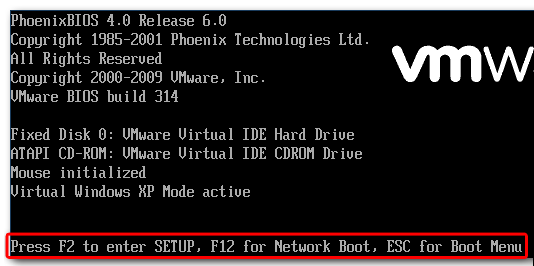
In general, however, as the computer boots up, some important keyboard strokes are noted somewhere prominent on the screen. In our case, they are at the bottom of the screen.


Press Escape to bring up the Boot Menu. Previously, we burned a CD with PLoP Boot Manager on it, so we will select the CD-ROM Drive option and hit Enter.


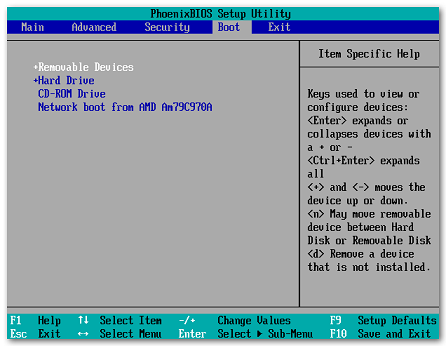
If your BIOS does not have a Boot Menu, then you will need to access the Setup menu and change the boot order to give the floppy disk or CD-ROM Drive higher precedence than the hard drive. Usually this setting is found in the “Boot” or “Advanced” section of the Setup menu.


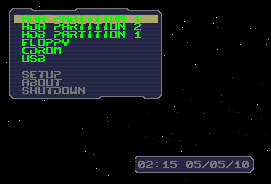
If done correctly, PLoP Boot Manager will load up, giving a number of boot options.


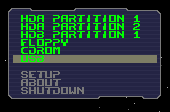
Highlight USB and press Enter.


PLoP begins loading from the USB drive.


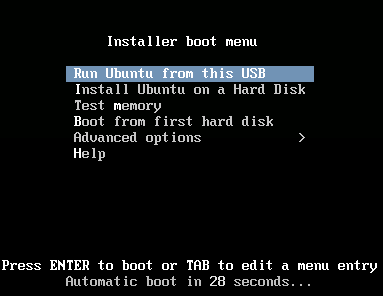
Despite our BIOS not having the option, we’re now booting using the USB drive, which in our case holds an Ubuntu Live CD!


This is a pretty geeky way to get your PC to boot from a USB…provided your computer still has a floppy drive. Of course if your BIOS won’t boot from a USB it probably has one…or you really need to update it.

How To Access the BIOS Setup Utility

You may need to access the BIOS setup utility for a number of reasons like managing memory settings, configuring a new hard drive, changing the boot order, resetting the BIOS password, etc.

Entering BIOS is actually very easy once you determine which key or combination of keys on your keyboard to press to access BIOS.

Follow the easy steps below to access the BIOS setup utility on your computer.
Difficulty: Easy
Time Required: Accessing the BIOS setup utility for your computer usually takes less than 5 minutes
Here's How:

1.Turn on your PC or restart it if it's already on.

2.Watch for a "entering setup" message in the first few seconds after turning on your computer. This message varies greatly from computer to computer and also includes the key or keys you need to press to enter BIOS.

Here are some common ways you might see this BIOS access message:
  • Press [key] to enter setup
  • Setup: [key]
  • Enter BIOS by pressing [key]
  • Press [key] to enter BIOS setup
  • Press [key] to access BIOS
  • Press [key] to access system configuration
3.Quickly press the key or keys instructed by the previous message to get into BIOS.

Note: You may need to press the BIOS access key several times to enter BIOS. Don't hold the key down or press it too many times or your system may error or lock up. If that happens, just restart and try again.

Tips:See a picture instead of a message? Your computer may be configured to show your computer's logo instead of important BIOS messages. Press Esc or Tab while the logo is showing to remove it.
See the message but didn't catch which key to press? Some computers start too quickly to see the BIOS access message. If this happens, press the Pause/Break key on your keyboard to freeze the screen during startup. Press any key to "unpause" your computer and continue booting.
Having troubles pausing the startup screen? If you're having problems pressing that pause button in time, turn on your computer with your keyboard unplugged. You should receive a keyboard error which will pause the startup process long enough for you to see the keys necessary to enter BIOS!
Tried everything and still can't get in? Some PCs with both PS/2 and USB connections are configured to only allow USB input after the POST. This means that if you're using a USB keyboard, it could be impossible to access BIOS. In that case, you'd need to connect an older PS/2 keyboard to your PC to access BIOS.
Accessing the BIOS is independent of any operating system on your computer because the BIOS is part of your motherboard hardware. It doesn't matter if your PC is running Windows 7, Windows Vista, Windows XP, Linux, Unix, or no operating system at all - any instructions for entering the BIOS setup utility will be the same.